
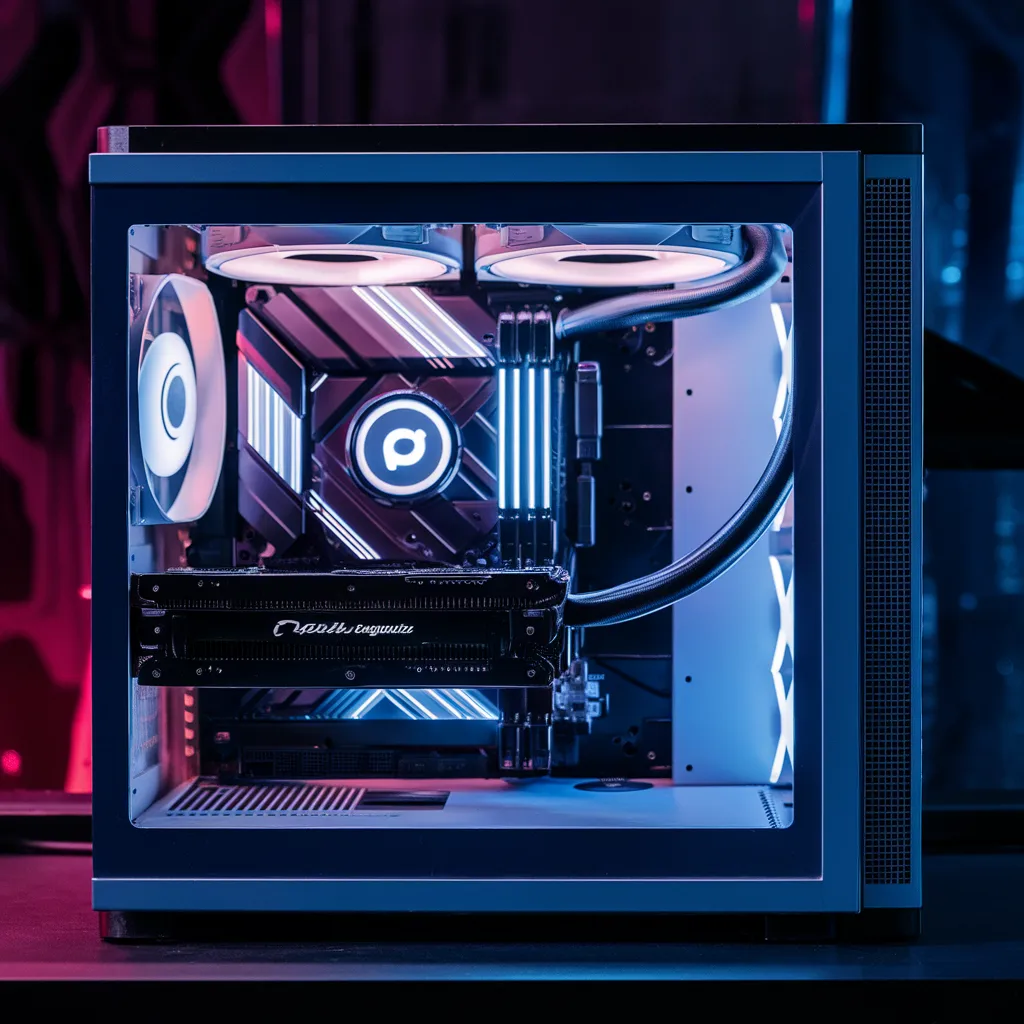
Building a PC is one of the most rewarding projects for technology enthusiasts and gamers alike. It allows complete control over performance, customization, and budget. Unlike pre-built systems, assembling a computer from scratch ensures that every component matches specific needs, whether for gaming, content creation, or professional work. Understanding how to build a PC may seem intimidating at first, but with the right guidance, it becomes a straightforward and enjoyable process. This comprehensive guide explains every step, from choosing components to assembling and powering up a fully functional computer.
Choosing the Right Components
The foundation of building a PC lies in selecting the right components. Each part plays a crucial role in determining performance, compatibility, and longevity. The central processing unit (CPU) acts as the brain of the computer, handling all major tasks. The motherboard connects all components and determines what hardware can be used. Random Access Memory (RAM) affects multitasking and speed, while the graphics processing unit (GPU) is essential for gaming and visual performance. Storage options include solid-state drives (SSD) for speed and hard drives (HDD) for capacity. The power supply unit (PSU) provides energy to all parts, and the case houses everything securely. Cooling systems, whether air or liquid, maintain optimal temperatures. Choosing compatible parts ensures smooth assembly and prevents performance bottlenecks.
Preparing the Workspace
Before starting the assembly, it is important to prepare a clean, static-free workspace. A large table with good lighting helps organize components and tools. Anti-static wristbands or mats prevent electrostatic discharge that could damage sensitive parts. Keeping screws, cables, and manuals organized avoids confusion during installation. Reading the manuals of the motherboard and case beforehand provides clarity on component placement and cable management. Proper preparation ensures a smooth and efficient building process.
Assembling the Motherboard and CPU
The first major step in building a PC is installing the CPU onto the motherboard. Carefully open the CPU socket, align the processor according to the marked corner, and gently place it without applying pressure. Once secured, attach the CPU cooler using the provided brackets or screws. Applying a small amount of thermal paste between the CPU and cooler ensures efficient heat transfer. Next, install the RAM sticks into the designated slots, ensuring they click firmly into place. If using an M.2 SSD, mount it onto the motherboard before placing it inside the case. This stage forms the core of the system, where most critical components are connected.
Installing the Motherboard into the Case
After assembling the CPU and RAM, the motherboard can be mounted inside the case. Begin by installing standoffs in the case to prevent direct contact between the motherboard and metal surface. Carefully align the motherboard with the I/O shield and screw it into place. Ensure all ports and connectors are accessible. Proper alignment is crucial to avoid damaging connectors or misplacing screws. Once secured, connect the front panel cables, including power, reset, and USB ports, according to the motherboard manual.
Adding the Power Supply and Storage Devices
The power supply unit (PSU) should be installed next, typically at the bottom or top of the case depending on design. Secure it with screws and route the necessary cables through the case’s cable management openings. Connect the main 24-pin power cable to the motherboard and the 8-pin connector to the CPU socket. For storage, mount SSDs or HDDs in their respective bays and connect them using SATA cables. Proper cable management not only improves airflow but also gives the build a clean, professional appearance.
Installing the Graphics Card and Final Components
The graphics card (GPU) is one of the most important components, especially for gaming or graphic-intensive tasks. Insert the GPU into the PCIe slot on the motherboard and secure it with screws. Connect the necessary power cables from the PSU to the GPU. Additional components such as Wi-Fi cards or sound cards can also be installed in available PCIe slots. Double-check all connections, ensuring that every cable is properly seated and no loose screws remain inside the case.
Powering On and BIOS Setup
Once all components are installed, connect the monitor, keyboard, and mouse. Plug in the power cable and switch on the PSU. Press the power button to start the system. If everything is connected correctly, the computer should boot into the BIOS. The BIOS allows configuration of hardware settings, fan speeds, and boot priorities. Ensure that all components are detected, including RAM, storage, and GPU. If the system fails to start, recheck connections and consult the motherboard’s troubleshooting guide.
Installing the Operating System
After confirming that the hardware is functioning properly, the next step is installing the operating system. Insert a USB drive containing the OS installation files and boot from it. Follow the on-screen instructions to install the system on the primary storage drive. Once completed, install necessary drivers for the motherboard, GPU, and peripherals. Updating the system ensures optimal performance and stability.
Conclusion
Learning how to build a PC provides valuable technical knowledge and the satisfaction of creating a personalized machine. It allows complete control over performance, aesthetics, and cost. From selecting components to assembling and configuring the system, each step contributes to a deeper understanding of computer hardware. Whether building a gaming PC, a workstation, or a budget-friendly setup, the process remains an empowering experience that enhances both skill and confidence.
FAQs
1. Is it cheaper to build a PC than to buy one?
Building a PC can often be more cost-effective because it eliminates brand markups and allows selection of components based on budget and performance needs.
2. How long does it take to build a PC?
For beginners, assembling a PC typically takes between two to four hours, depending on familiarity with components and cable management.
3. What tools are needed to build a PC?
A Phillips-head screwdriver, anti-static wristband, and good lighting are the main tools required. Some cases may include additional screws or brackets.
4. Can a beginner build a PC without prior experience?
Yes, with proper research and guidance, beginners can successfully build a PC. Following step-by-step instructions ensures a smooth process.
5. How often should a PC be upgraded?
Upgrading every three to five years is common, depending on performance needs and technological advancements. Components like GPUs and storage drives are often upgraded first.